

Shopify Blog post update Slack alerts
Overview
Use this workflow when you want your content team to be notified in Slack every time a Shopify blog post is updated. In this setup, Flow Trigger Extensions detects the blog post change, Shopify Flow starts a workflow with the Blog Post Update trigger, and Flow Transactional Email sends the updated blog title and body to your Slack workflow webhook.
Video Guide
Before you start
You have Flow Trigger Extensions installed in Shopify admin.
You have access to Shopify Flow.
You have a Slack workflow webhook URL ready.
You have the Flow Transactional Email app installed if you want to send the Slack webhook request from a pre-configured HTTP request. If you are not on Shopify basic plan, you will be able to send the HTTP request from the Shopify flow itself.
Enable the Blog Post Update trigger
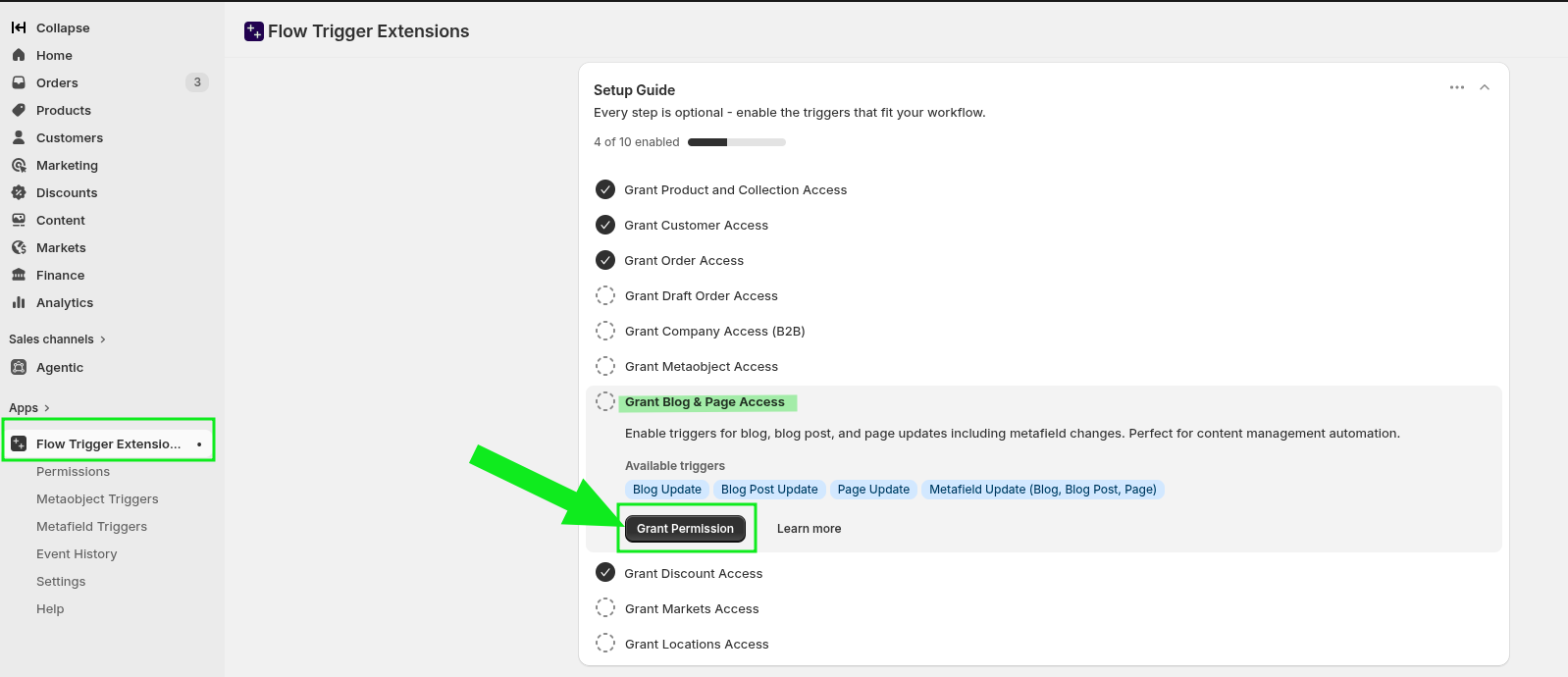
In Shopify admin, open Apps and select Flow Trigger Extensions. On the setup guide, find Grant Blog & Page Access and click Grant Permission.
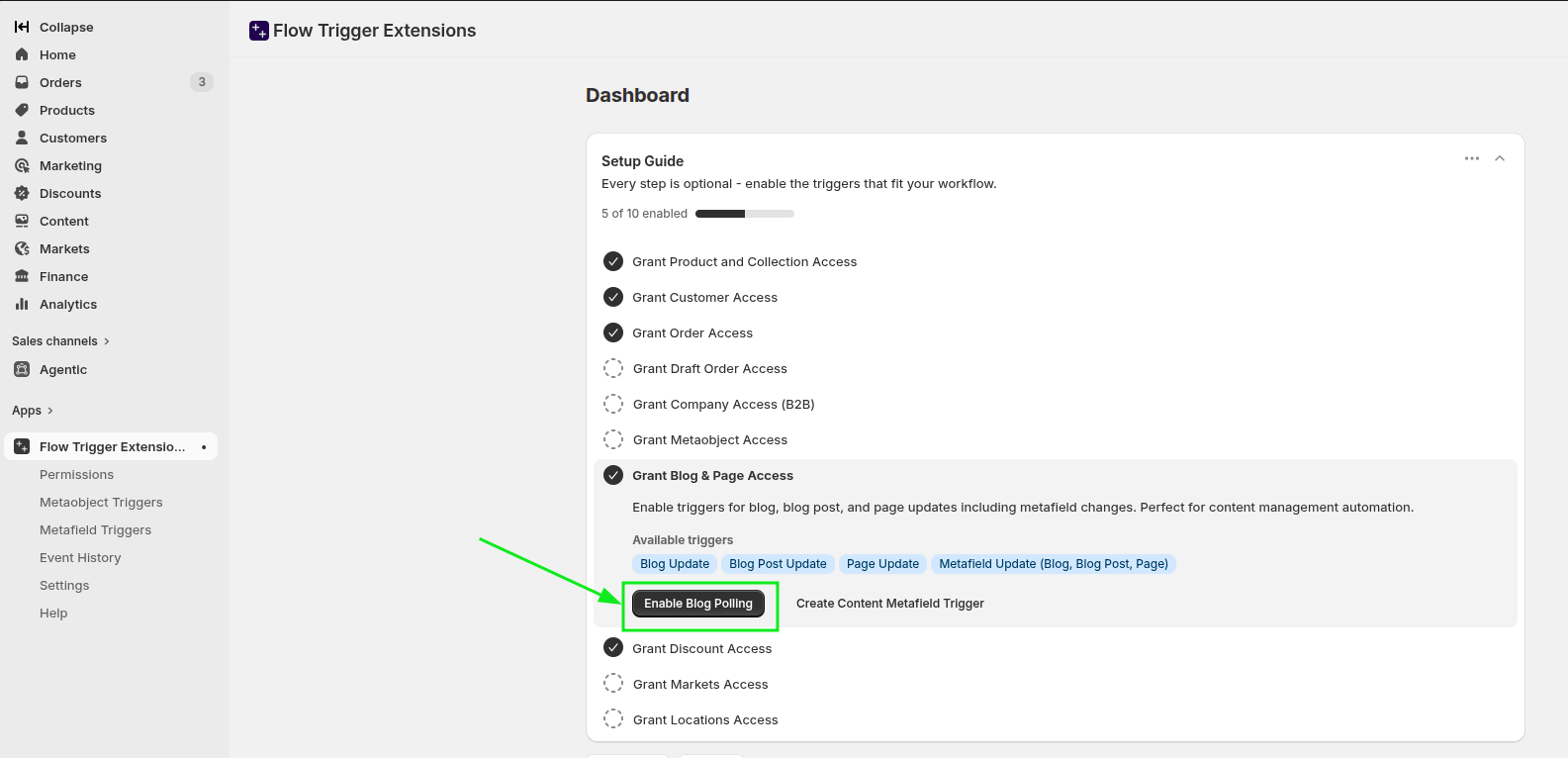
After access is granted, the same card shows Enable Blog Polling. Click Enable Blog Polling to go directly to the correct settings area.
In Settings, open the Polling Triggers tab. Find Blog Post Update Trigger and turn on Enable Blog Post Update trigger.
This tells the app to monitor blog post changes and trigger the Blog Post Update workflow in Shopify Flow.
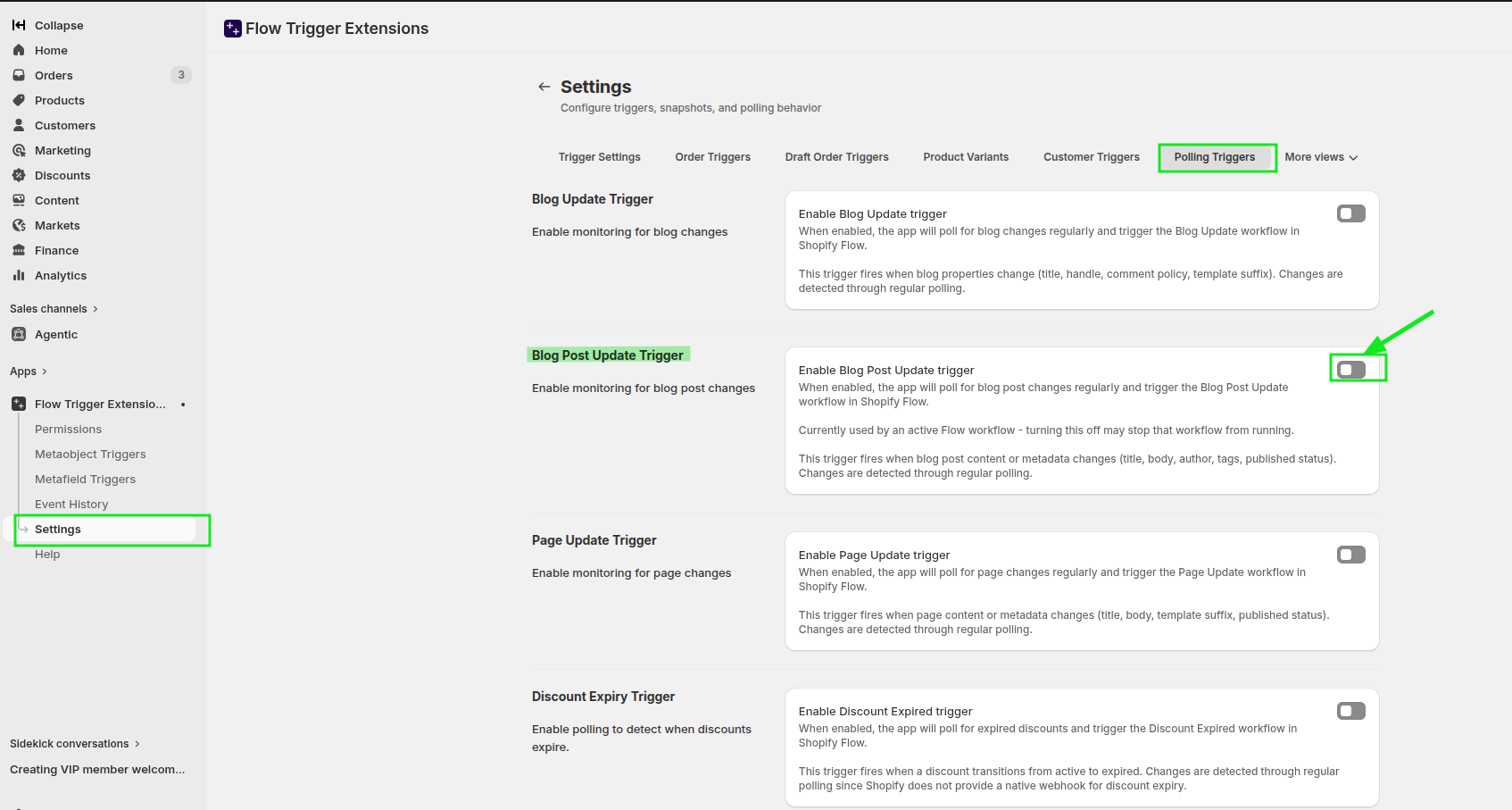
The Blog Post Update trigger is detected through polling. If you turn this trigger off later, any Flow that depends on it may stop running.
Create the Slack workflow
Create a Slack workflow that starts From a webhook. In the webhook setup, define variables for the content you want Slack to receive, such as title and body.
Then add an action that sends a message to your content team channel, for example #content-team, so the team can review the updated post and act on it.
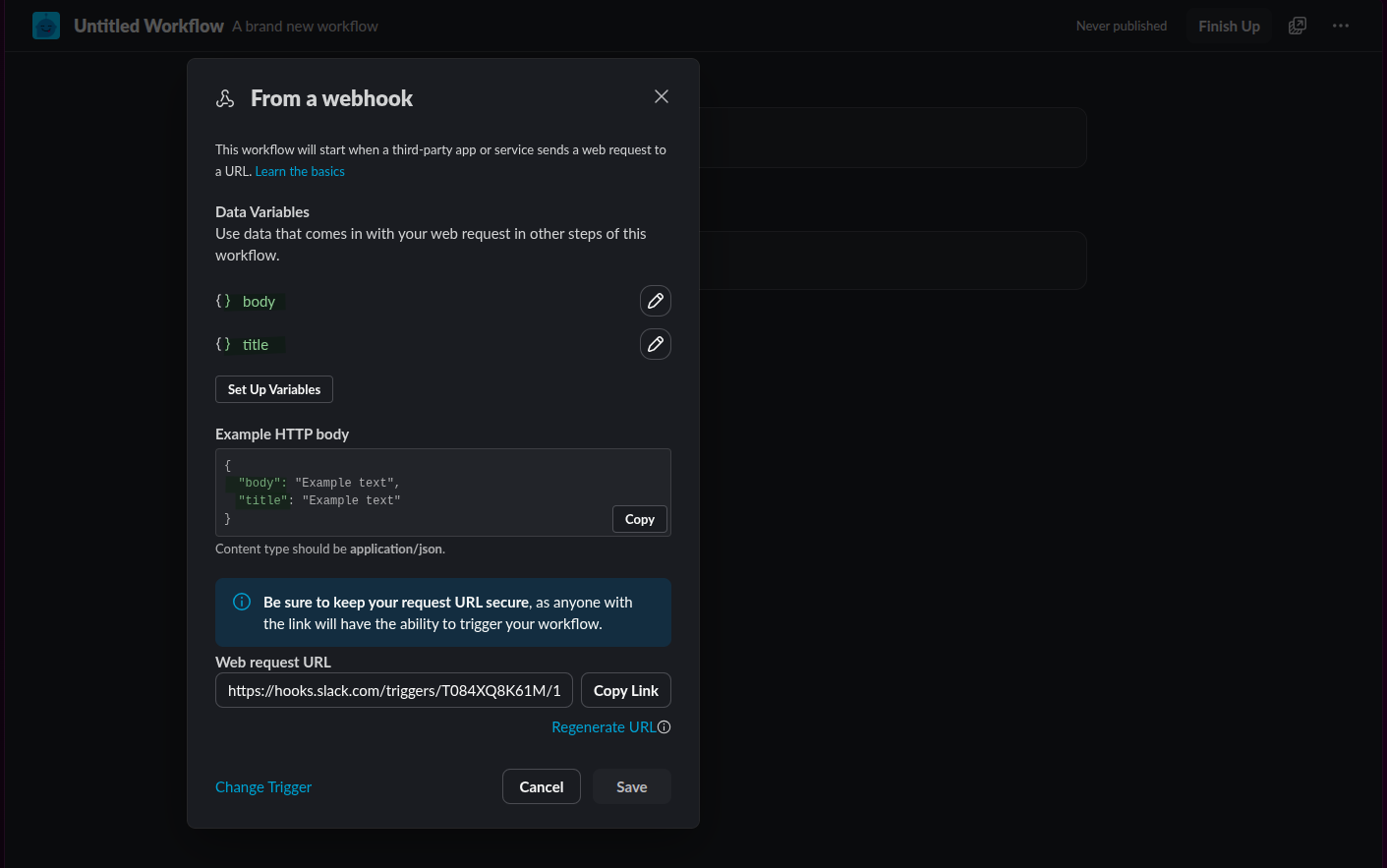
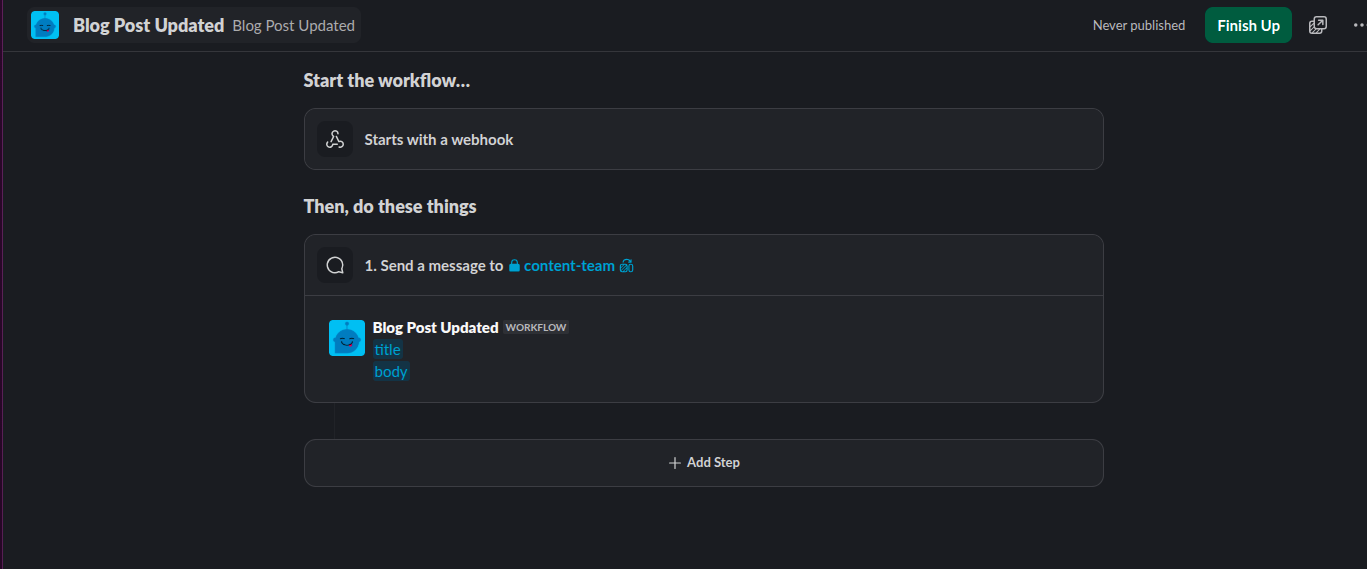
Keep your Slack webhook URL secure. Anyone with the webhook URL can send data to that Slack workflow.
Create the Shopify Flow
Open Shopify Flow and create a new workflow. In the trigger picker, select Blog Post Update from the Flow Trigger Extensions triggers.
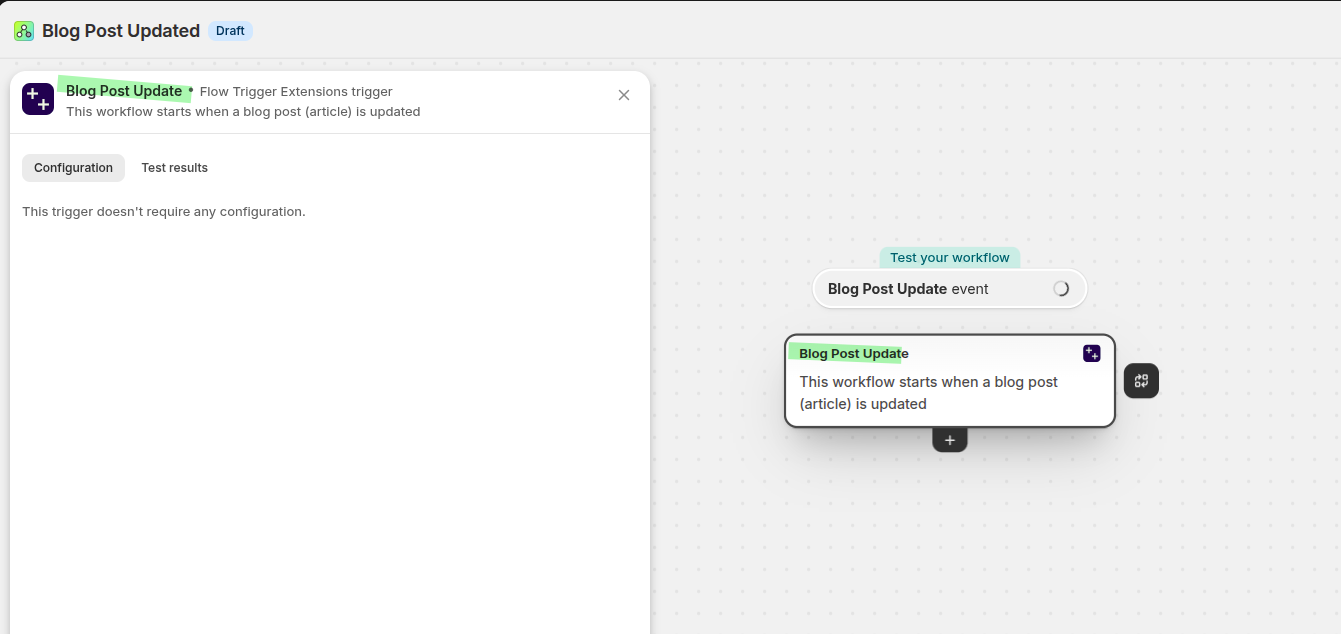
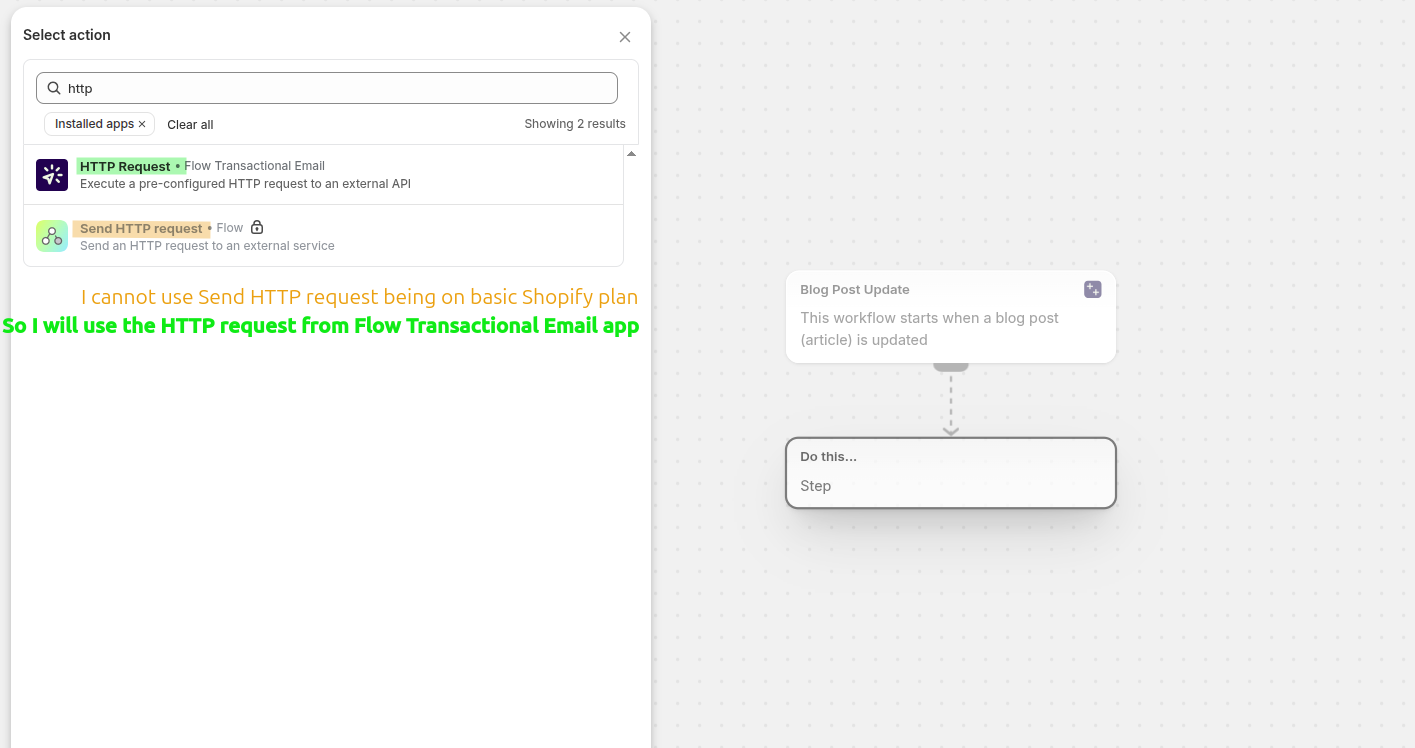
If your Shopify plan does not support Flow's built-in Send HTTP request action, choose HTTP Request from the Flow Transactional Email app instead. This lets you send the Slack webhook from a pre-configured request.
If Send HTTP request is unavailable on your plan, use the HTTP Request action from Flow Transactional Email exactly as shown in this guide.
Configure the HTTP request in Flow Transactional Email
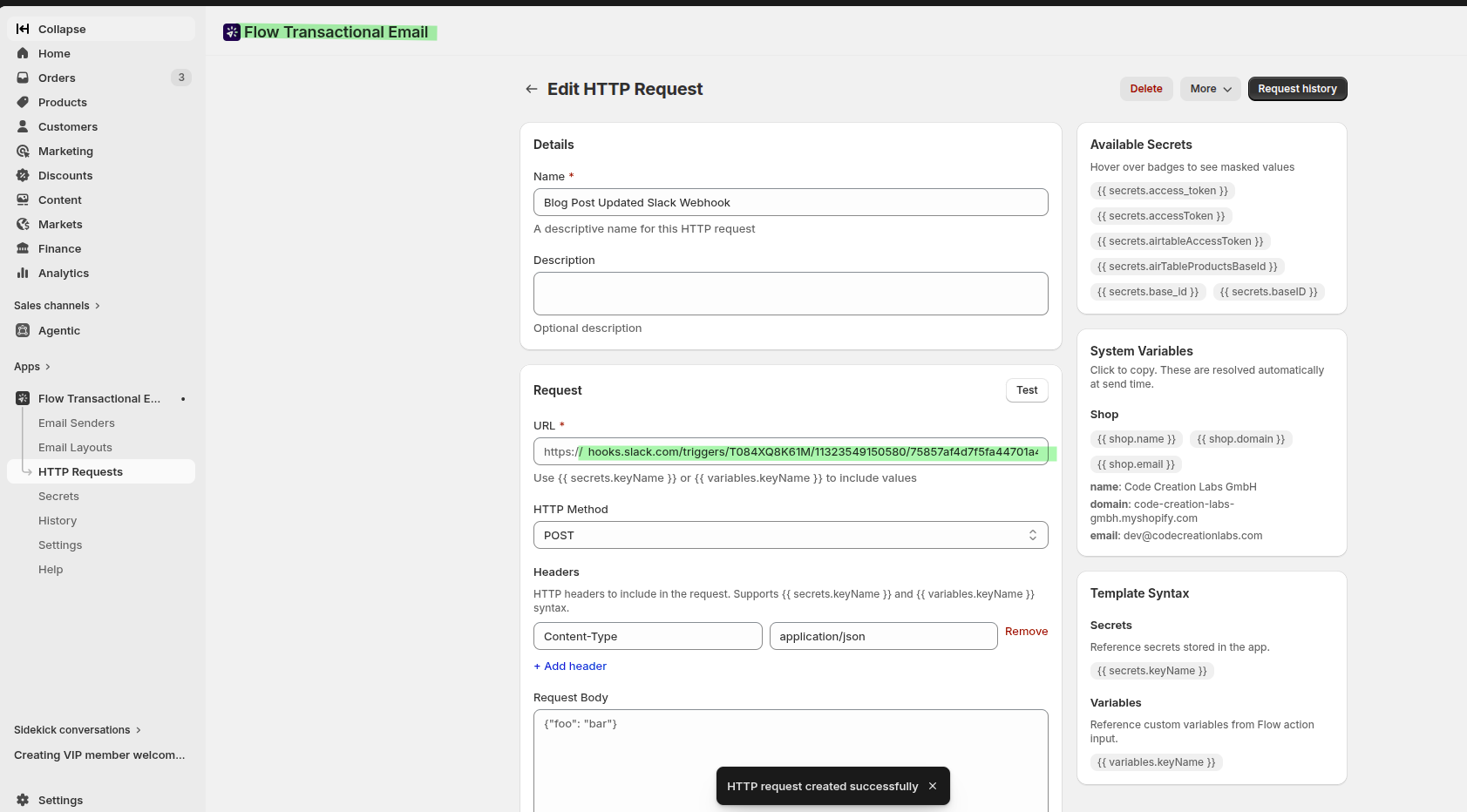
In Flow Transactional Email, go to HTTP Requests and create a request for your Slack workflow. You can see more details in How to make an HTTP Request using Flow Transactional Email.
Name: something clear, such as
Blog Post Updated Slack WebhookURL: your Slack webhook URL
HTTP Method:
POSTHeader:
Content-Type=application/json
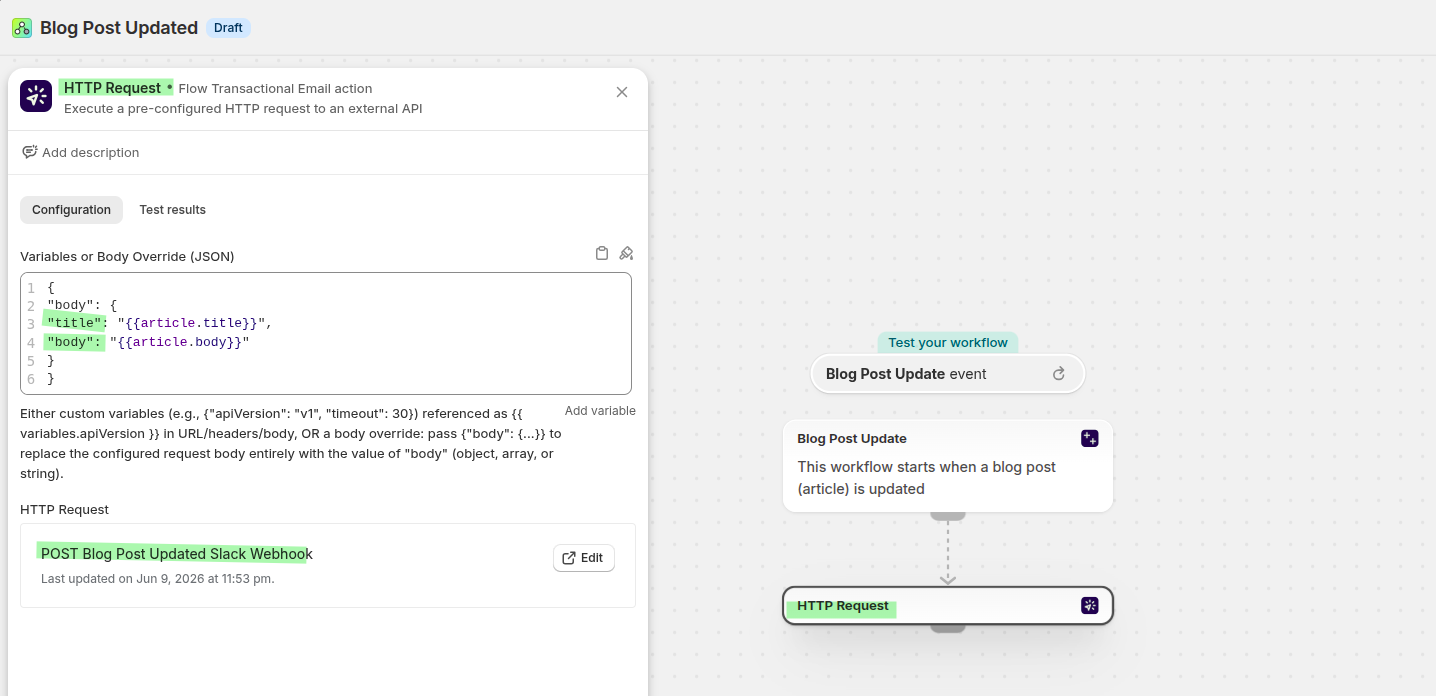
Then return to Shopify Flow and map the blog post data into the request body. Use the article fields from the Blog Post Update trigger so Slack receives the updated title and content.
{
  "body": {
    "title": "{{article.title}}",
    "body": "{{article.body}}"
  }
}
What the Slack message looks like
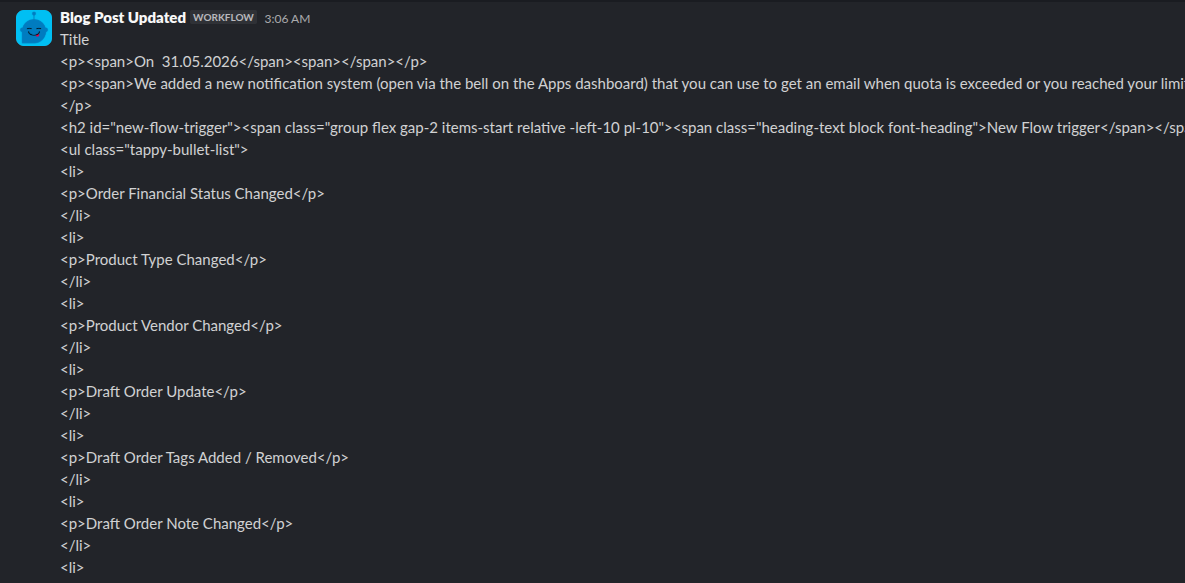
When the flow runs, Slack receives the updated blog post title and body from Shopify. Your content team can review the change immediately without checking the blog manually.
Recommended workflow structure
Flow Trigger Extensions detects a blog post update through Enable Blog Post Update trigger.
Shopify Flow starts with the Blog Post Update trigger.
Flow Transactional Email sends a
POSTrequest to your Slack workflow webhook.Slack posts the blog title and body in your content team channel.
Troubleshooting
Check that Grant Blog & Page Access is enabled in Flow Trigger Extensions and that Enable Blog Post Update trigger is turned on under Settings > Polling Triggers.
Confirm that the Slack workflow still uses From a webhook, the webhook URL is correct, and the Flow Transactional Email request uses POST with Content-Type: application/json.
Verify that your Shopify Flow action maps the trigger data correctly. The request body should pass the updated article values, for example {{article.title}} and {{article.body}}.