

Alert support when a page changes
Why this workflow matters
If your Return Policy changes from 30 days to 14 days, your storefront updates immediately, but your support team may keep answering with the old information unless you notify them right away.
This workflow closes that gap. Using Flow Trigger Extensions, Shopify Flow, and a Slack webhook, you can alert your support team the moment a policy page is updated.
This is especially useful for policy pages such as returns, shipping, privacy, warranty, and terms pages where outdated support answers can quickly damage trust.
What you will build
You will create:
A Slack workflow that starts with Starts with a webhook
A text variable named text that receives the message from Shopify Flow
A Shopify Flow workflow that starts with the Page Update trigger from Flow Trigger Extensions
A condition that checks whether page.handle is equal to
return-policyor another page handle you want to monitorAn alert step that sends the updated page title and content to your Slack webhook
Before you start
You have installed Flow Trigger Extensions.
You have access to Shopify Flow.
You have access to Slack workflows in the Slack workspace where you want alerts sent.
You know which page handle you want to monitor, such as
return-policy.
The Page Update trigger only appears after the correct app permission is enabled. In Flow Trigger Extensions, make sure Grant Blog & Page Access is turned on.
Video Guide
You can see this full video guide of full process, I missed part 4 of step 1 (to enable the page update trigger from polling triggers) in the video, therefore the page update trigger was not firing.
Make sure to follow each step carefully.
Step 1: Enable the page permission in Flow Trigger Extensions
Before creating the Shopify Flow workflow, confirm the app can access blog and page updates.
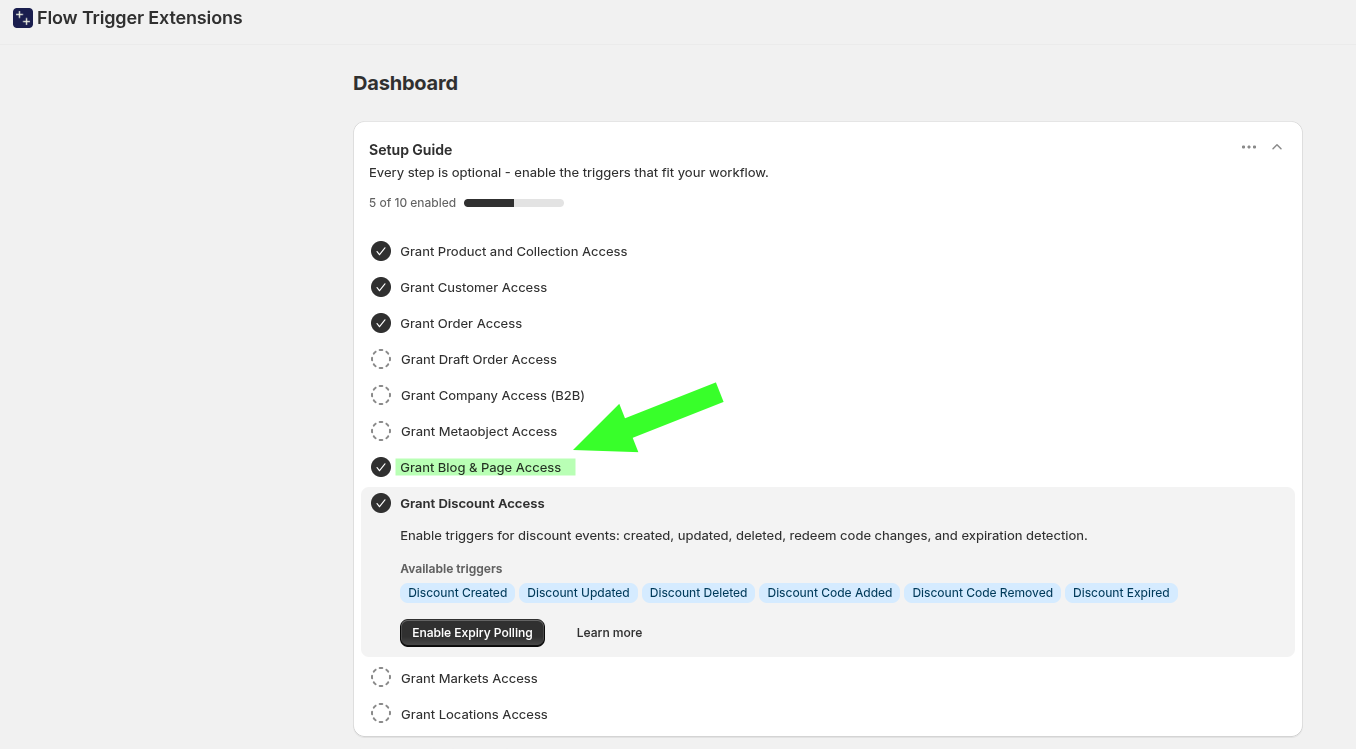
Open Flow Trigger Extensions in Shopify admin and go to the Dashboard.
In the setup guide, look for Grant Blog & Page Access.
Turn on Grant Blog & Page Access so page-based triggers are available in Shopify Flow.
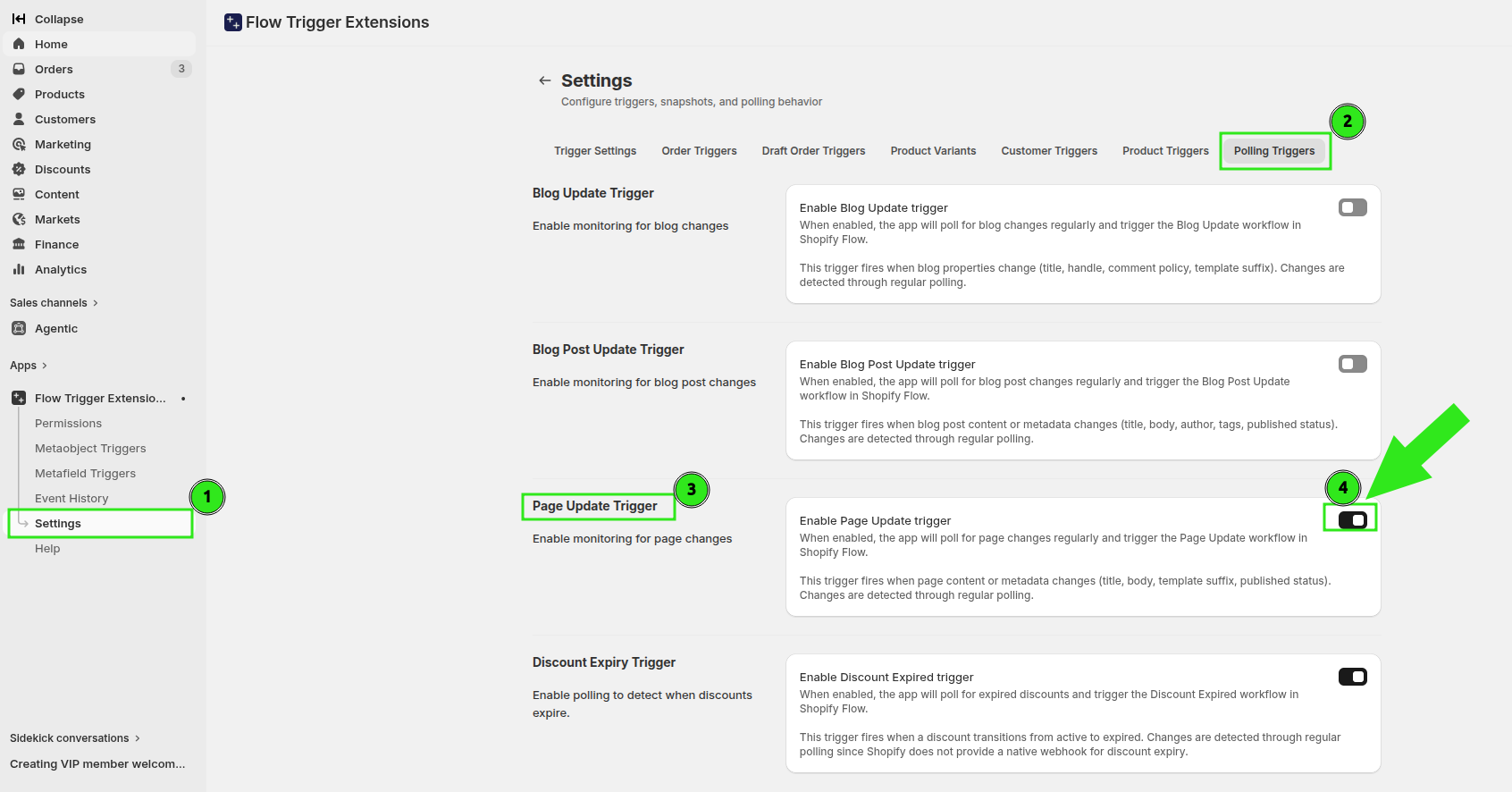
Then enable page update trigger from Settings -> Polling Triggers -> Page Update Trigger
Step 2: Create the Slack workflow
Create the Slack side first so you have a webhook URL ready for Shopify Flow.
In Slack, create a workflow and choose Starts with a webhook as the trigger.
In the webhook setup, create a variable named text. This is the value Slack will receive from Shopify Flow.
Add a message step such as Send a message to #support-team.
In the Slack message body, insert the text variable so the exact message from Shopify Flow is posted into the support channel.
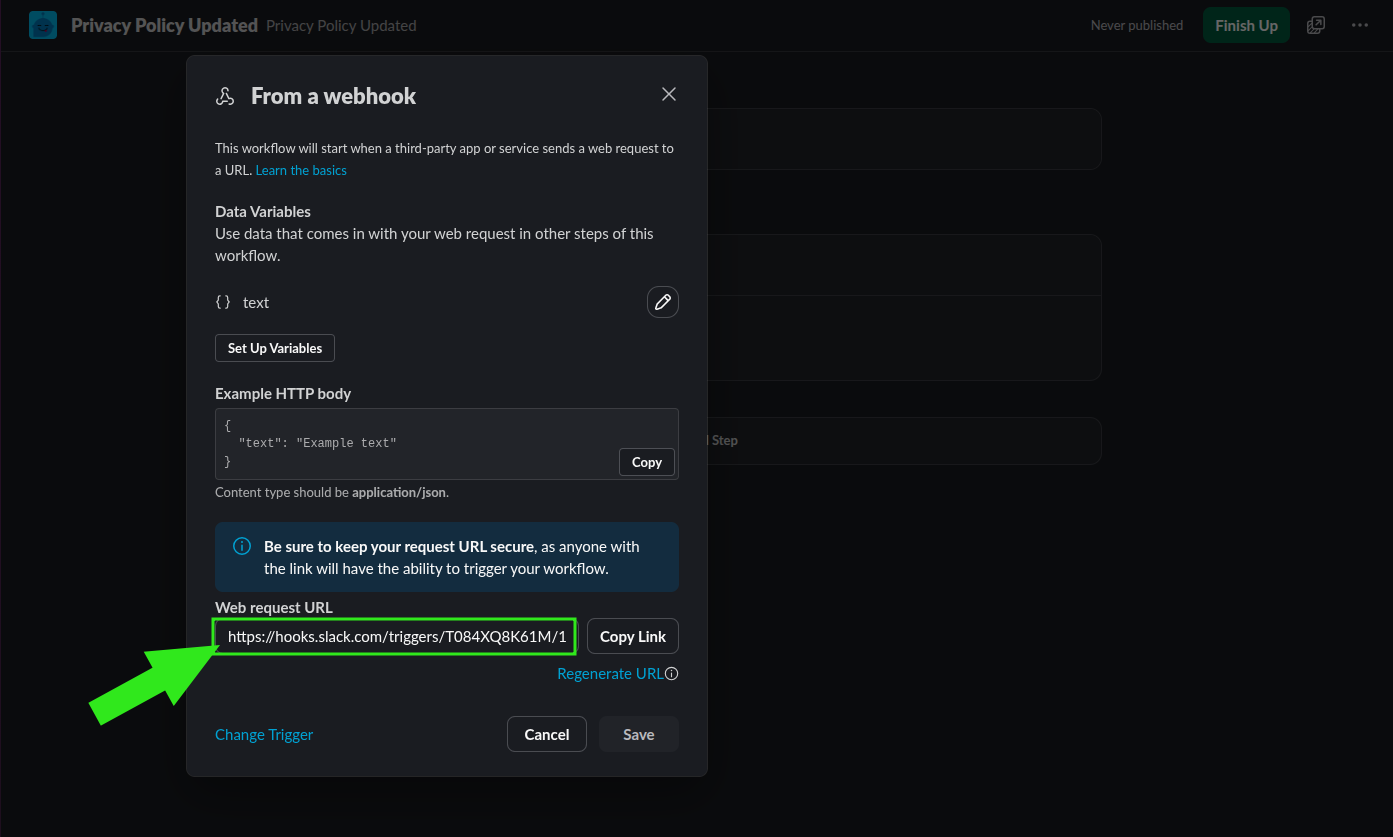
Save the Slack workflow so the webhook URL becomes available.
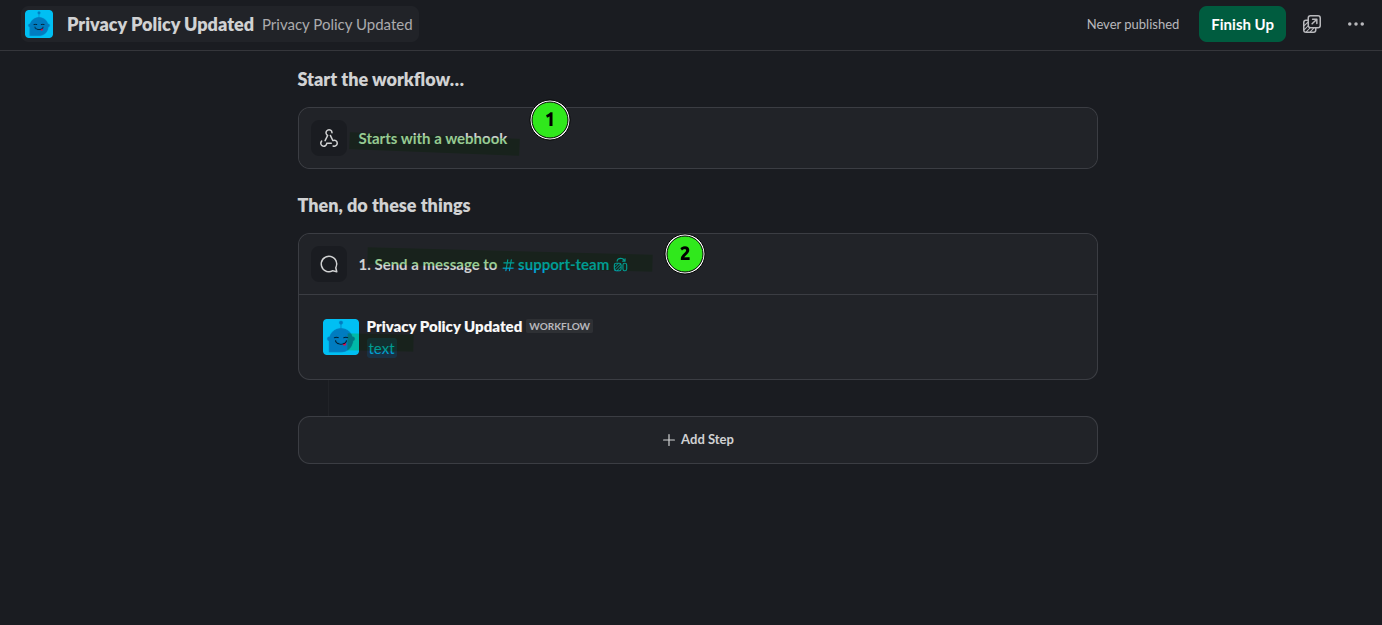
Your Slack message can be as simple as the text variable by itself, or you can wrap it with extra wording in Slack. The important part is that the message includes the incoming text value from Shopify Flow.
Copy the webhook URL
Open the webhook settings in Slack and copy the Web request URL. You will use this URL in Shopify Flow.
Step 3: Confirm the page handle in Shopify
Before building the condition, confirm the exact handle of the page you want to monitor.
In Shopify admin, open the page and check the Search engine listing preview. For a return policy page, the handle may be return-policy.
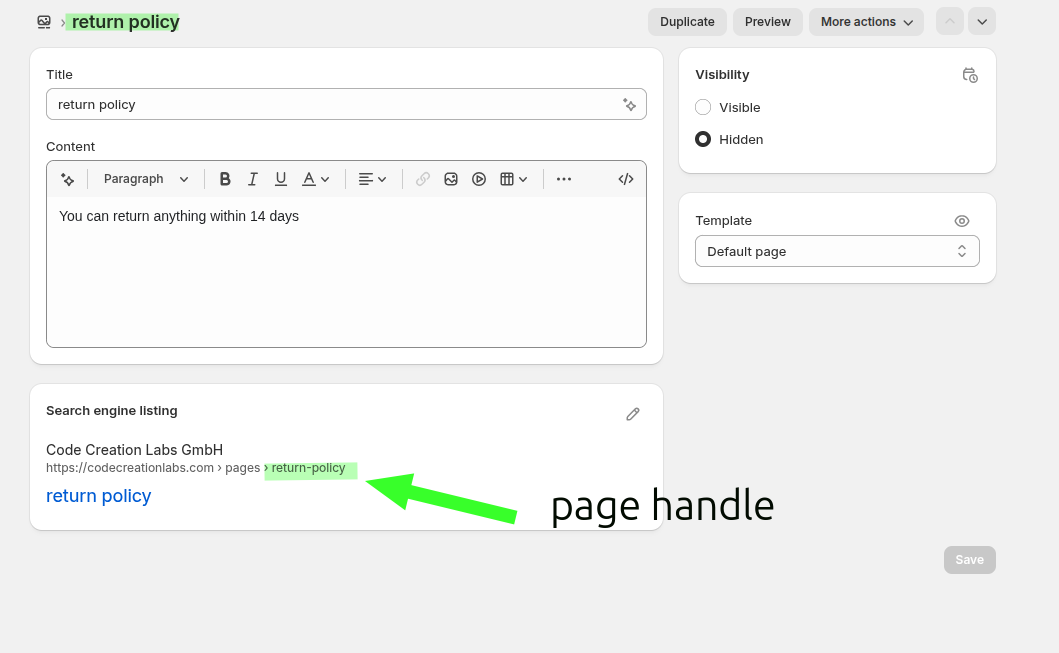
If your page uses a different handle, use that exact value in your Flow condition instead of return-policy.
Step 4: Create the Shopify Flow workflow
Now build the automation in Shopify Flow.
Open Shopify Flow and create a new workflow.
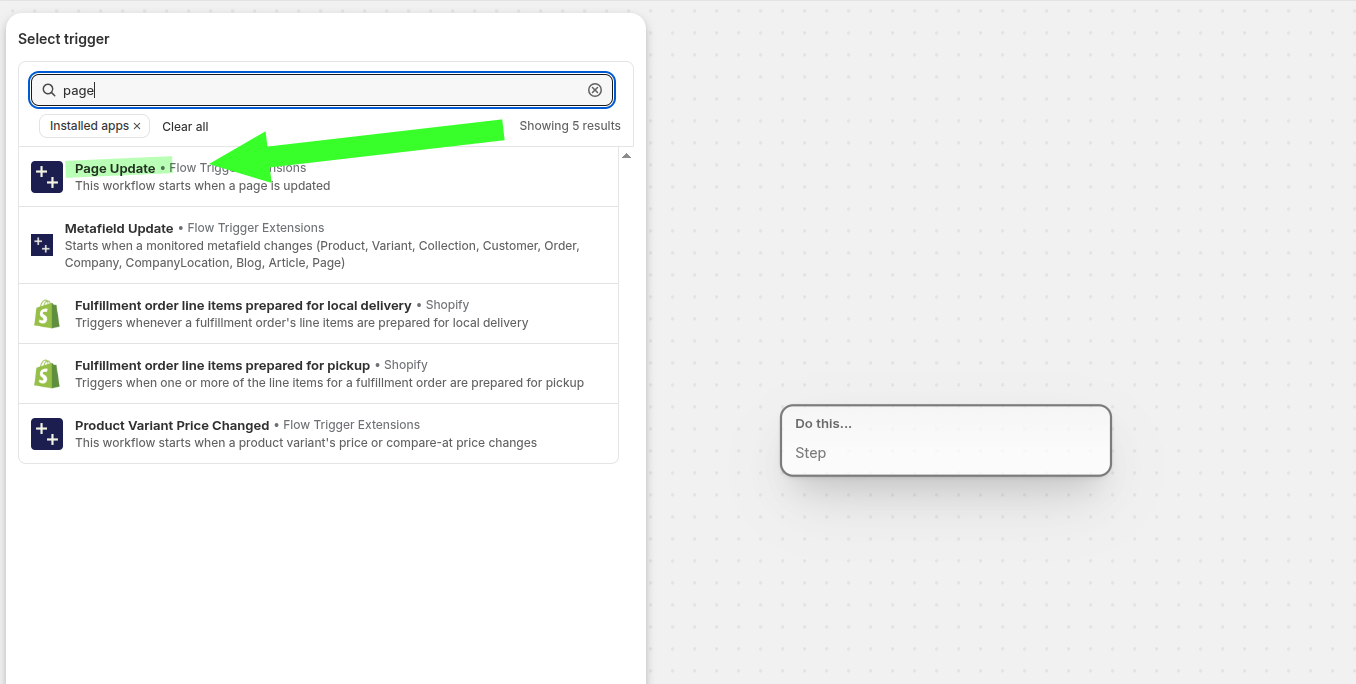
Search for page and select Page Update from Flow Trigger Extensions.
Once selected, the workflow starts when a page is updated.
Step 5: Add a condition for the page you want to monitor
You usually do not want alerts for every page update. Add a condition so the workflow runs only for the policy page you care about.
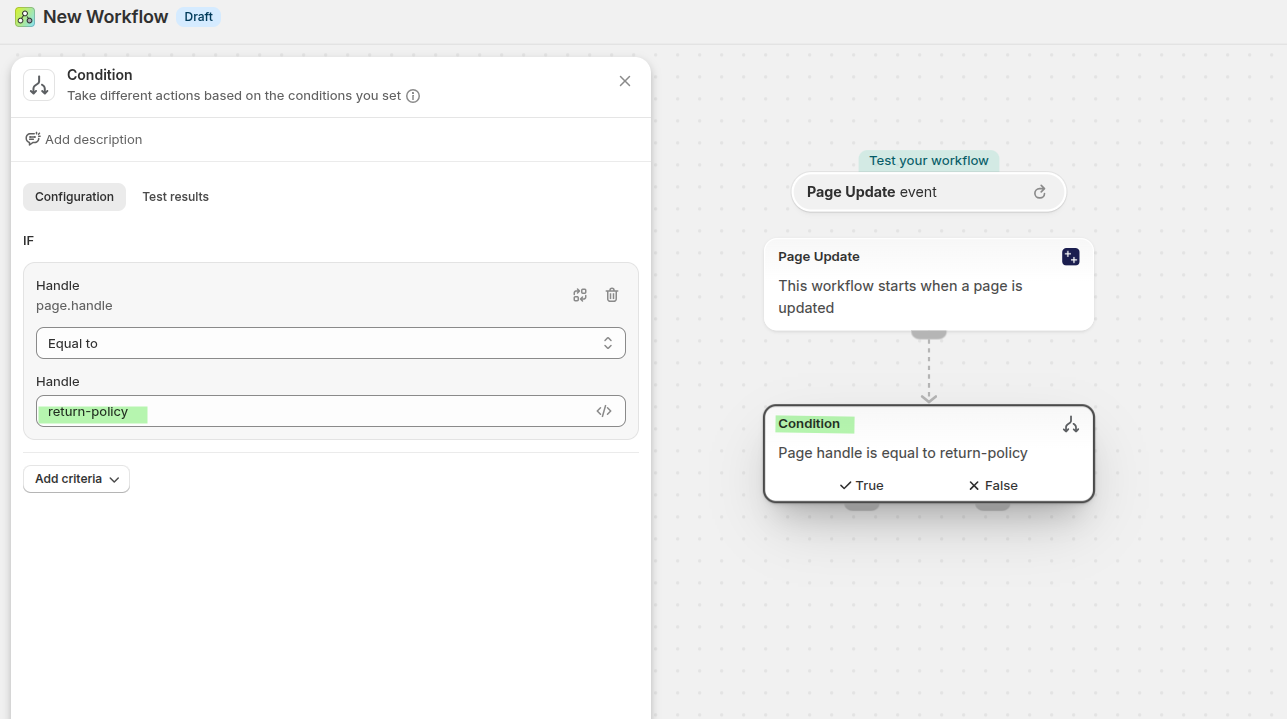
After the Page Update trigger, add a Condition step.
Set the field to Handle or page.handle.
Set the rule to Equal to.
Enter return-policy, or the exact handle of the page you want to monitor.
Step 6: Send the page update to Slack
After the condition’s True branch, send the update details to your Slack webhook.
If your Shopify plan includes Send HTTP request
Add Shopify Flow’s built-in Send HTTP request action and use your copied Slack webhook URL.
Send a JSON body that passes the page details into the Slack text variable.
{
  "body": {
    "text": "⚠️ Policy page updated\n\nPage title: {{ page.title }}\nPage handle: {{ page.handle }}\n\nUpdated content:\n{{ page.bodyHtml }}"
  }
}
If you are on Basic Shopify
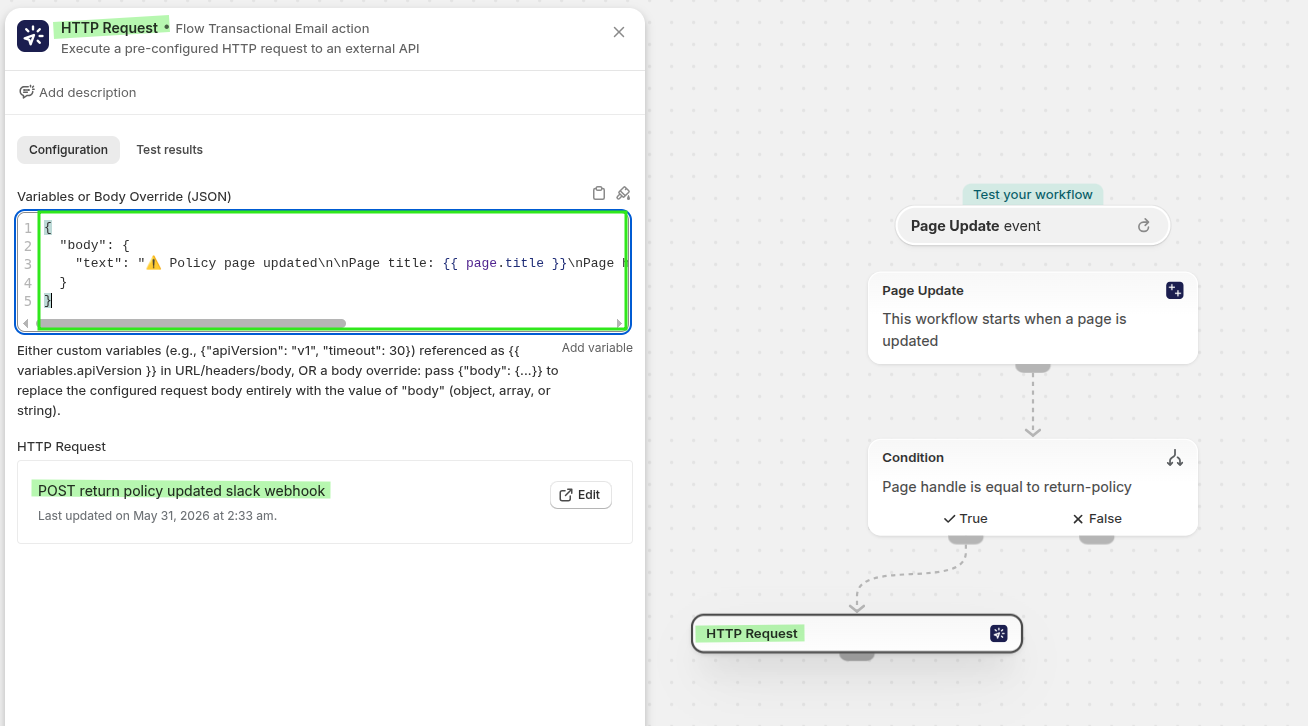
The built-in Send HTTP request action may not be available on your plan. In that case, use Flow Transactional Email and its HTTP Request action as the workaround for outbound webhooks.
The related guide uses these real app areas and labels:
HTTP Requests
Create request
HTTP Request inside Shopify Flow
Event History
Flow Transactional Email can send outbound HTTP requests even when your Shopify plan does not include Shopify’s default Send HTTP request action.
For the full setup pattern, see the blog guide mentioned by the user: Make an HTTP Request.
Recommended Slack message format
To keep alerts readable for support teams, send a message like this:
{
  "body": {
    "text": "⚠️ Policy page updated\n\nPage title: {{ page.title }}\nPage handle: {{ page.handle }}\n\nUpdated content:\n{{ page.bodyHtml }}"
  }
}
Some teams prefer to send only the title, handle, and a short note to Slack, then send the full content by email. If your page content is long, that can make alerts easier to scan.
Recommended workflow behavior
For the return policy example, the final workflow logic looks like this:
Page Update trigger fires when any page changes
Condition checks whether
page.handleis equal toreturn-policyIf true, Shopify Flow sends the new page title and content to the Slack webhook
Slack posts the message to your support channel immediately
This helps your support team see policy changes before they continue answering customers with outdated information.
Test the workflow
Make a small change to the monitored page in Shopify admin and save it.
Open Shopify Flow and confirm the workflow ran from the Page Update event.
Make sure the handle matched the value you entered.
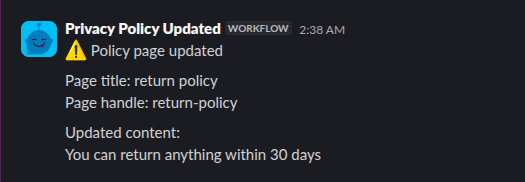
Open your support channel and verify the Slack workflow posted the incoming text message.
slack message looks like this:
Best practices
Use the exact page handle, not the page title, in your condition.
Start with one critical page such as
return-policybefore expanding to other policy pages.Keep the Slack channel focused on internal operations, such as #support-team or a policy-update channel.
If your store is on Basic Shopify, use Flow Transactional Email for the outbound webhook step.
Retest the workflow after changing your Slack webhook or editing the message format.
Example use cases
Alert support when return windows, exchange rules, or final sale terms change.
Notify the team when delivery timelines, shipping zones, or carrier rules are edited.
Keep support aligned when legal or coverage language changes.
Outcome
With this workflow in place, your website and support team stay aligned. The moment a monitored policy page changes, Slack alerts your team so they can respond with the correct information right away.